
In this blog post, I will talk about a mistake I have made and have seen many developers doing it as well, which is a shared Material Module. I am sure if you used Angular Material, you still have a SharedMaterial Module in your project, time to remove it.
What is my Motivation
I am working on a new project which has many modules, and it has more than 20k Lines of Code, and I was working on making some modules as Lazy Loaded modules. I realized we are using the SharedMaterial module in all modules. First, I thought its ok, but I tried to do an experiment which proved its a bad idea.
Time To Prove Ourselves Wrong
In my last project where we had our custom components like Grid, Tables, Forms and I did ended up using a big Shared Material Module, as all the components were written on top of Angular Material Component. And now it’s time to prove myself wrong that it was not a good approach.
Let’s create a new App, and we will cover what’s wrong with this approach and how it increases the bundle size. We will be using webpack-bundle-analyzer to check the bundle size. Run the below command to create a new App. Make sure you are using the latest Angular CLI
ng new demoappnext install webpack-bundle-analyzer using the below command
now add the given script in package.json
"analyze": "ng build --prod --stats-json && webpack-bundle-analyzer ./dist/demoapp/stats-es2015.json"now run the below command to view the stats.
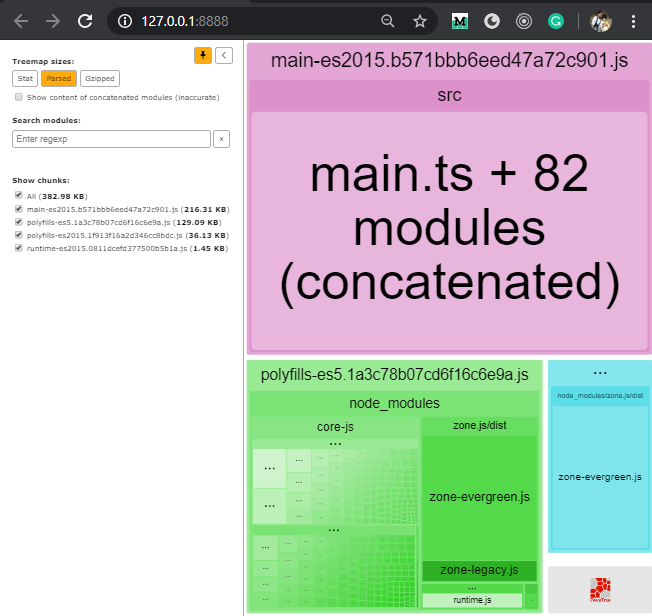
Bundle Analyzer 1.1
The above command opens a page, as shown in the image above.
Now, let’s add Angular Material using the below command:
ng add @angular/materialRun the npm run analyze command again and see the main bundle size. It's already increased by around 70 KB without using even a single component from Angular Material.
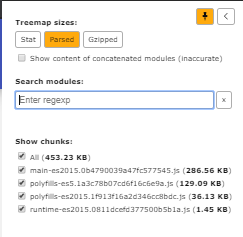
After Adding Angular Material 1.2
Now let’s add 2 modules employee and department, respectively, using the below command. We will not lazy load them for the first example.
ng g m employee --routing --module app
ng g c employee --export true
ng g m department --routing --module app
ng g c department --export true
Open app.component.html and replace the default template data with
<app-employee></app-employee>
<app-department></app-department>
If we analyze the bundle again at this point as we hardly have any code, there is a very small change in size, and it has reduced as the default template contains lots of markups and CSS.
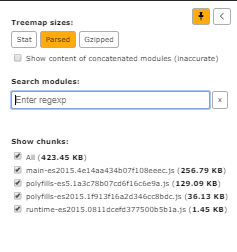
After adding modules 1.3
Now let’s add some code in both the component, we will copy some code from Material documentation.
Add the below code into department and employee component respectively
<mat-accordion>
  <mat-expansion-panel>
    <mat-expansion-panel-header>
      <mat-panel-title>
        Personal data
      </mat-panel-title>
      <mat-panel-description>
        Type your name and age
      </mat-panel-description>
    </mat-expansion-panel-header>

    <mat-form-field>
      <input matInput>
    </mat-form-field>

    <mat-form-field>
      <input matInput type="number" min="1">
    </mat-form-field>
  </mat-expansion-panel>
  <mat-expansion-panel (opened)="panelOpenState = true"
                       (closed)="panelOpenState = false">
    <mat-expansion-panel-header>
      <mat-panel-title>
        Self aware panel
      </mat-panel-title>
      <mat-panel-description>
        Currently I am {{panelOpenState ? 'open' : 'closed'}}
      </mat-panel-description>
    </mat-expansion-panel-header>
    <p>I'm visible because I am open</p>
  </mat-expansion-panel>
</mat-accordion>
department.component.html
<div class="example-container">
  <mat-form-field appearance="fill">
    <mat-label>Input</mat-label>
    <input matInput>
  </mat-form-field>
  <br>
  <mat-form-field appearance="fill">
    <mat-label>Select</mat-label>
    <mat-select>
      <mat-option value="option">Option</mat-option>
    </mat-select>
  </mat-form-field>
  <br>
  <mat-form-field appearance="fill">
    <mat-label>Textarea</mat-label>
    <textarea matInput></textarea>
  </mat-form-field>
</div>
employee.component.html
One more change is needed in department.component.ts add the below property :
panelOpenState = false;Now, we need to add some Material module into our employee, and department module as well to avoid the build error, and this is where most of us decide to create a SharedMaterial module like one below.
ng g m shared/material --flat trueand add the below code into the new module:
import { NgModule } from '@angular/core';
import { OverlayModule } from '@angular/cdk/overlay';
import { CdkTreeModule } from '@angular/cdk/tree';
import { PortalModule } from '@angular/cdk/portal';
import { MatAutocompleteModule } from '@angular/material/autocomplete';
import { MatButtonModule } from '@angular/material/button';
import { MatButtonToggleModule } from '@angular/material/button-toggle';
import { MatCardModule } from '@angular/material/card';
import { MatCheckboxModule } from '@angular/material/checkbox';
import { MatChipsModule } from '@angular/material/chips';
import { MatRippleModule } from '@angular/material/core';
import { MatDividerModule } from '@angular/material/divider';
import { MatExpansionModule } from '@angular/material/expansion';
import { MatFormFieldModule } from '@angular/material/form-field';
import { MatIconModule } from '@angular/material/icon';
import { MatInputModule } from '@angular/material/input';
import { MatListModule } from '@angular/material/list';
import { MatMenuModule } from '@angular/material/menu';
import { MatPaginatorModule } from '@angular/material/paginator';
import { MatProgressSpinnerModule } from '@angular/material/progress-spinner';
import { MatSelectModule } from '@angular/material/select';
import { MatSidenavModule } from '@angular/material/sidenav';
import { MatSnackBarModule } from '@angular/material/snack-bar';
import { MatSortModule } from '@angular/material/sort';
import { MatTableModule } from '@angular/material/table';
import { MatTabsModule } from '@angular/material/tabs';
import { MatToolbarModule } from '@angular/material/toolbar';
import { MatTreeModule } from '@angular/material/tree';

const materialModules = [
  CdkTreeModule,
  MatAutocompleteModule,
  MatButtonModule,
  MatCardModule,
  MatCheckboxModule,
  MatChipsModule,
  MatDividerModule,
  MatExpansionModule,
  MatIconModule,
  MatInputModule,
  MatListModule,
  MatMenuModule,
  MatProgressSpinnerModule,
  MatPaginatorModule,
  MatRippleModule,
  MatSelectModule,
  MatSidenavModule,
  MatSnackBarModule,
  MatSortModule,
  MatTableModule,
  MatTabsModule,
  MatToolbarModule,
  MatFormFieldModule,
  MatButtonToggleModule,
  MatTreeModule,
  OverlayModule,
  PortalModule
];

@NgModule({
  imports: [
    ...materialModules
  ],
  exports: [
    ...materialModules
  ],
})
export class MaterialModule {
}
material.module.ts
Now include the newly create MaterialModule into employee and department module.
imports: [
   CommonModule,
   MaterialModule
]
Now run the analyzer again, you can see 216 KB has increased.
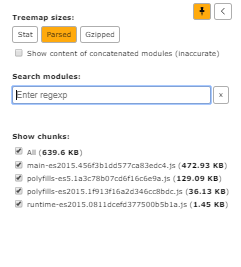
After using Angular Components 1.4
Now to optimize the app, the next approach we take is lazy load the modules. Let’s convert the employee and department module to lazy loaded module.
Remove the EmployeeModule and DepartmentModule from app.module.ts remove the import statement and from the import array as well.
This is the code after removing both modules
import { BrowserModule } from '@angular/platform-browser';
import { NgModule } from '@angular/core';

import { AppRoutingModule } from './app-routing.module';
import { AppComponent } from './app.component';
import { BrowserAnimationsModule } from '@angular/platform-browser/animations';

@NgModule({
  declarations: [
    AppComponent
  ],
  imports: [
    BrowserModule,
    AppRoutingModule,
    BrowserAnimationsModule
  ],
  providers: [],
  bootstrap: [AppComponent]
})
export class AppModule { }
app.module.ts
Next, configure the employee and department as a lazy-loaded module. Add the below code to app-routing.module.ts
import { NgModule } from '@angular/core';
import { Routes, RouterModule } from '@angular/router';


const routes: Routes = [
  {
    path: 'employee',
    loadChildren: () => import('./employee/employee.module').then(m => m.EmployeeModule)
  },
  {
    path: 'department',
    loadChildren: () => import('./department/department.module').then(m => m.DepartmentModule)
  }
];

@NgModule({
  imports: [RouterModule.forRoot(routes)],
  exports: [RouterModule]
})
export class AppRoutingModule { }
app-routing.module.ts
Next, add the below code in employee-routing.module.ts
import { NgModule } from '@angular/core';
import { Routes, RouterModule } from '@angular/router';
import { EmployeeComponent } from './employee.component';
const routes: Routes = [
    { path: '' , component : EmployeeComponent }
];
@NgModule({
    imports: [RouterModule.forChild(routes)],
    exports: [RouterModule]
})
export class EmployeeRoutingModule { }
employee-routing.module.ts
And similar changes in department-routing.module.ts
import { NgModule } from '@angular/core';
import { Routes, RouterModule } from '@angular/router';
import { DepartmentComponent } from './department.component';
const routes: Routes = [
    { path: '', component: DepartmentComponent }
];
@NgModule({
    imports: [RouterModule.forChild(routes)],
    exports: [RouterModule]
})
export class DepartmentRoutingModule { }
department-routing.module.ts
Let’s change app.component.html to use routerLink to lazy-load these 2 modules.
<a [routerLink]="['/employee']" routerLinkActive="router-link-active">Employee</a>
<a [routerLink]="['/department']" routerLinkActive="router-link-active">Department</a>
<router-outlet></router-outlet>
app.component.html
Now run the analyzer again and check the bundle size. After lazy loading, the bundle size should be reduced, but it increased by around 70KB.
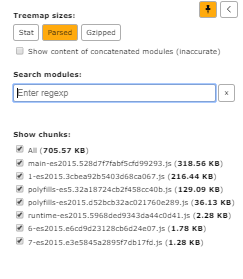
After lazy loading 1.5
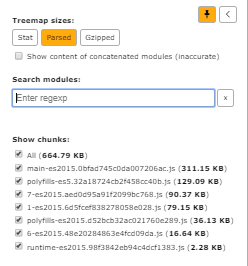
Now, let’s remove the Shared Material module and import only the modules which are needed. In employee.module.ts import MatFormFieldModule and MatSelectModule and in department.module.ts import MatExpansionModule and MatFormFieldModule delete the shared module and run the command to analyze the bundle size. In this example, we save around 40KB.
Conclusion
I did a similar experiment in my current project, and the bundle size was reduced by around 200KB, remember when it comes to the web every single KB matters. So, I would suggest and try in your app refactor and share your experience.
Check out the corresponding GitHub Repo here.