
I am working on a PoC project that progressively migrates a traditional server-side website to angular. I want to share some experiences of what we have tried. Hope this article can save you time if you are doing similar things.
Our legacy website contains many pages, we can't replace all of them in a release. Instead, we want legacy UI and new UI (angular) to coexist for several releases and replace the content step by step.
We have tried two options:
1. Angular is used as part of the statically generated server site (traditional).
2. Angular is used as a shell application (container for the static site) whereas parts of the static site are shown inside iframes.
For the convenience of explaining the problem, the rest of the article will use this layout to demonstrate.
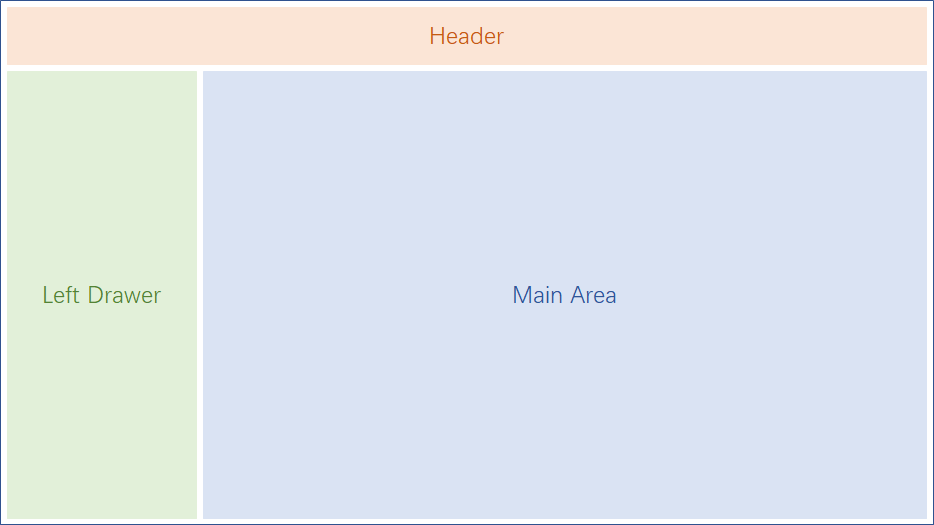
Option 1 – Angular in traditional website
Our first thought is to replace part of a web page with angular in the server rendered (traditional) website. Basically, we are going to replace the "Main Area". And we have tried two methods.
Method 1: Bootstrap Angular application on demand in certain parts of the server-rendered website
Let's take a simple example. Here is the static html file for the layout shown above.
<body>
   <div class="header"><span>Header</span></div>
   <div class="container">
      <div class="left-drawer">
         <span>Left Drawer</span>
      </div>
      <div id="main" class="main-area">
         <div class="action-bar">
            <div onclick="navigateTo('app-page1')" class="action-item">Page1</div>
            <div onclick="navigateTo('app-page2')" class="action-item">Page2</div>
         </div>
         <div class="text-area">
            <span>Main Area</span>
         </div>
      </div>
   </div>
</body>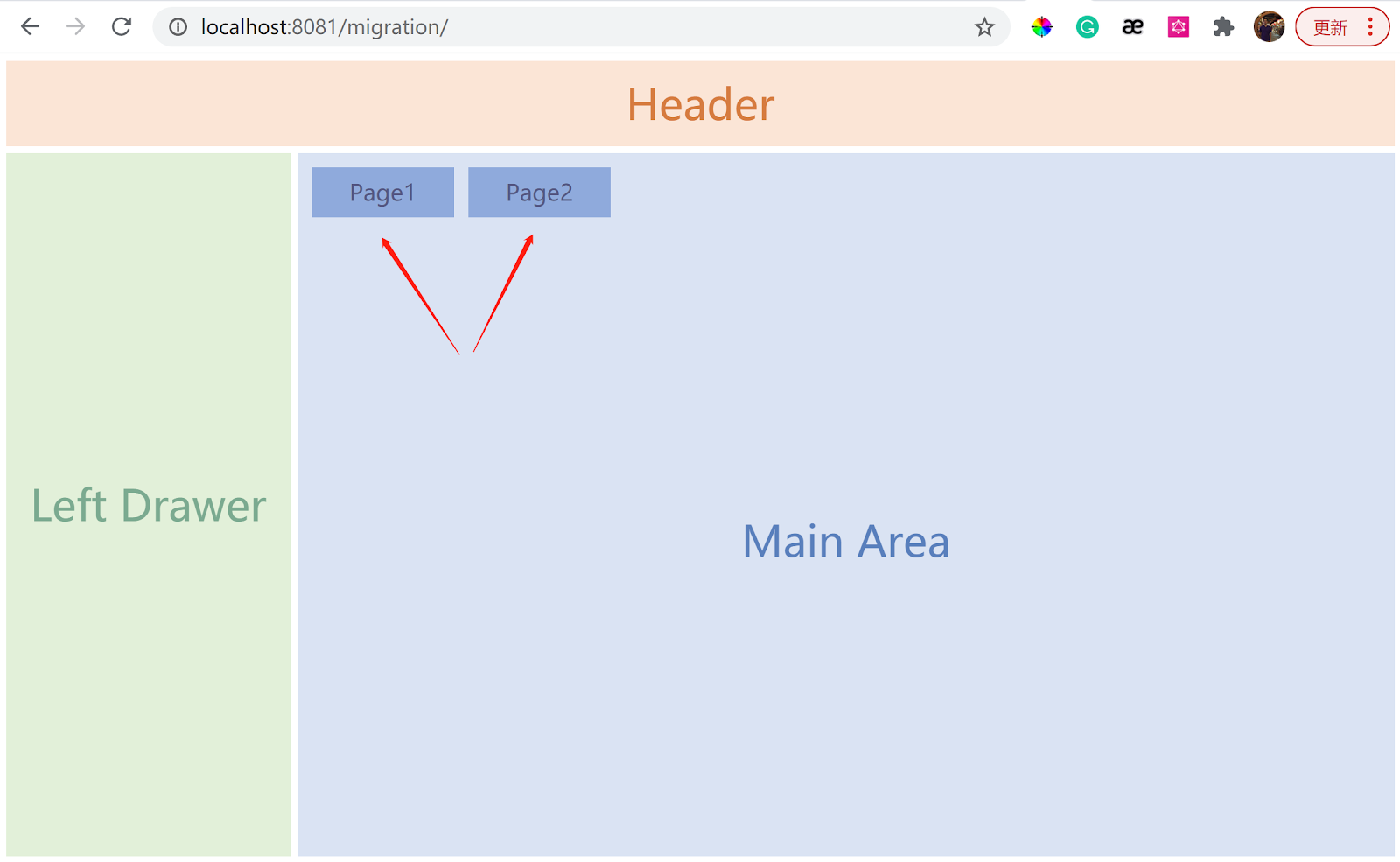
Two buttons in the "Main Area" will help to navigate to the angular page. The "navigateTo" function appends an Angular related HTML tag and there's also some code that adds lots of scripts to bootstrap Angular.
function navigateTo(tagName) {
    var mainArea = document.getElementById("main");
    var newTag = document.createElement(tagName);
    mainArea.parentNode.appendChild(newTag);
    ...
}
The main task of this function is to create the angular component html tag and add the script tag to bootstrap angular. This can also be done on the server (rendering HTML tag) for convenience.
Let's see the angular part. We create a new angular project with two new components "app-page1" and "app-page2". Each of those components will act as a root component on a new page. And modify the app.module.ts as below:
const entryComponents = [AppComponent, Page1Component, Page2Component];

@NgModule({
  declarations: [
    AppComponent,
    Page1Component,
    Page2Component
  ],
  imports: [
    BrowserModule,
    AppRoutingModule
  ],
  providers: [{provide: APP_BASE_HREF, useValue : '/migration' }],
  entryComponents: entryComponents,
  bootstrap: []
})
export class AppModule {
  constructor(private resolver: ComponentFactoryResolver) { }
  ngDoBootstrap(appRef: ApplicationRef) {
    for (const componentDef of entryComponents) {
        const factory = this.resolver.resolveComponentFactory(componentDef as Type<{}>);
        if (document.querySelector(factory.selector)) {
            appRef.bootstrap(factory);
            break;
        }
    }
  }
}
Need to notice two things:
- Empty the bootstrap list in NgModule.
- Define our own ngDoBootstrap method. In this method, we query the document and bootstrap our target component.
Here is what it looks like:
There is an alternative approach which is based on URL. For example, when the user clicks the “Page2” button, the URL is changed to “/migration/page2”. And the AppModule checks the last url segment and bootstrap the related component:
const entryComponents = [AppComponent, Page1Component, Page2Component];
const rootComponentsMap = {
  page1: Page1Component,
  page2: Page2Component
};

@NgModule({
...
})
export class AppModule {
  constructor(private resolver: ComponentFactoryResolver) { }
  ngDoBootstrap(appRef: ApplicationRef) {
    const lastSegment = window.location.href.split('/').pop();
    if (rootComponentsMap[lastSegment]) {
      const factory = this.resolver.resolveComponentFactory(rootComponentsMap[lastSegment] as Type<{}>);
      appRef.bootstrap(factory);
    }
  }
}
Basing the implementation on the HTML tag is more convenient in my case, because the tag can be added on the server easily.
There is an interesting thing about this method. If I have both 'app-page1' and 'app-page2' HTML tags in the HTML at the same time, and bootstrap both of them in ngDoBootstrap method. What will happen? The answer is both of them are created.
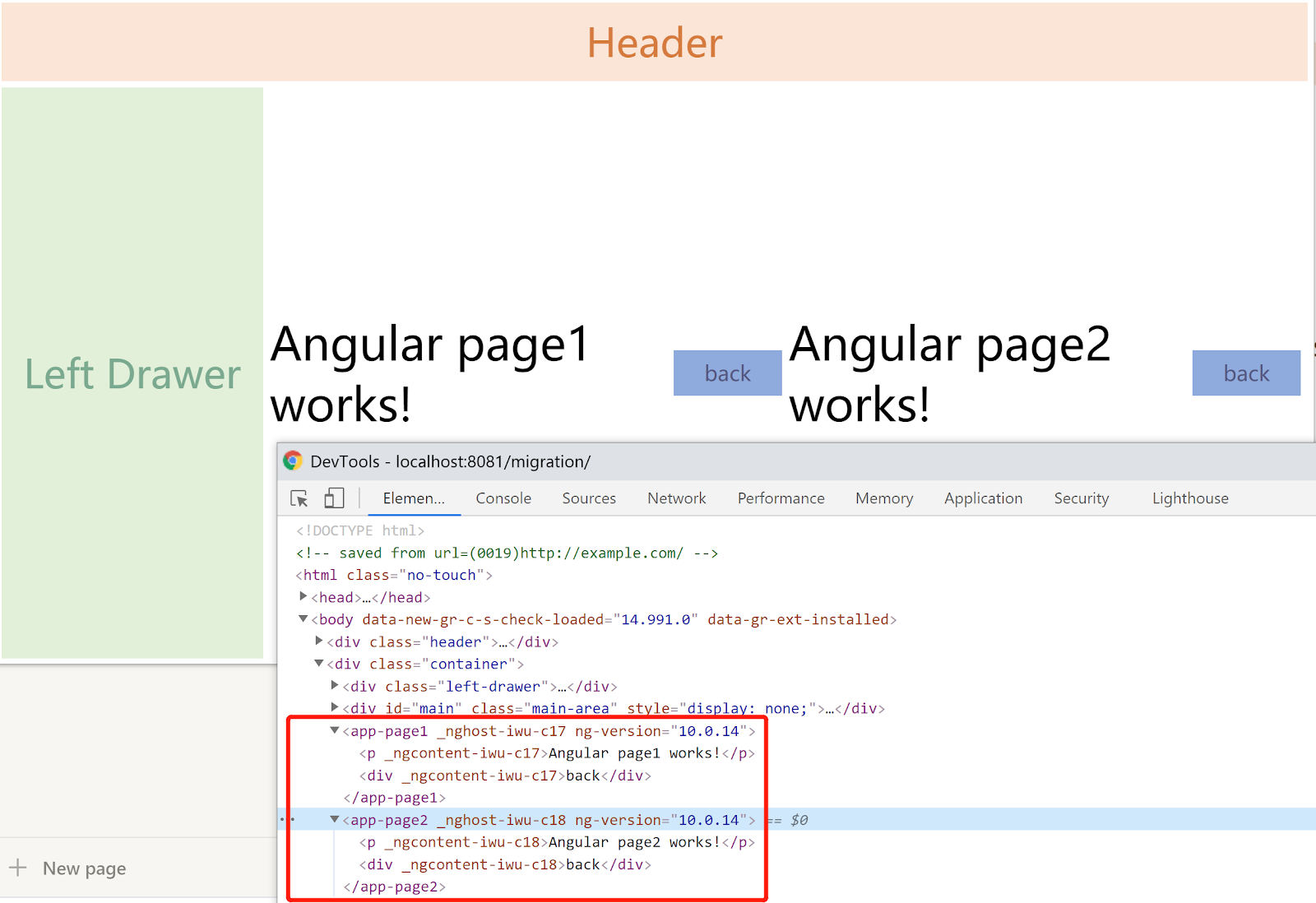
That means we can replace more then one piece in the html, even replace component by component. That is another topic.
Method 2: Bootstrap Angular application once and render components dynamically with lazy loading
Sometimes we will have partial page rendering in legacy websites. I mean the content of "Main Area" is from Ajax response. We want to bootstrap angular once, not every time a user navigates to the new page.
This can be done by using the angular dynamic component loader, we bootstrap angular in the onload event handler for the static page, but render only the root element without any appearance, so it is not really visible to the user. Then use the dynamic component loader to load the related Angular component and make it visible when the user navigates to the new page.
export class AppComponent {
  pageMap = {
     page1: Page1Component,
     page2: Page2Component
  };

  ...
  loadComponent(pageName) {
    pageMap = {
       page1: Page1Component,
       page2: Page2Component
    }

    const componentFactory = this.componentFactoryResolver.resolveComponentFactory(pageMap[pageName]);

    const viewContainerRef = this.angularHost.viewContainerRef;
    viewContainerRef.clear();

    const componentRef = viewContainerRef.createComponent<PageComponent>(componentFactory);
    // componentRef.instance.data = parameter if needed;
  }
  ...
}
Please see the detail of this method in dynamic component loader.
In option 1, we also need a communication mechanism between the legacy web and angular. Since two parts are in the same context, we have many choices, like global window, post message and custom event.
Option 2 – Traditional website in angular
In this option, we rebuild the skeleton with angular (header, left-drawer), create an angular iframe component, and put the legacy website into it.
Legacy web contains header/left-drawer, In the iframe onload event handler, we can hide them. We even modify some layout and style in the iframe onload event handler, to give users a more unified experience. This becomes one of the advantages of this option. Just remember to give a loading style during iframe loading and the adjustment script execution.
In some cases, the legacy page in iframe refresh and the header/left-drawer comes out again. We use MutationObserver to watch the change and hide it again.
watchSomeElementChange(element: any): void {
  const observer = new MutationObserver(e => {
    if (e[0].addedNodes) {
      for (const item of Object.keys(e[0].addedNodes)) {
        const dom = e[0].addedNodes[item];
        if ('header' === dom.id) {
          this.adjustLegacyPageUI();
        }
      }
    }
  });

  observer.observe(element, { childList: true });
}
One of the advantages of this option is that two UI can work at the same time. The user can choose what they want.
Since our legacy website and angular are in the same origin in our case, we don't meet many iframe issues. We do handle the problem of "iframe history impacts browser's history". And it's another topic.
Conclusion
Two options have their own pros and cons. We need to consider according to specific needs and actual conditions. In our project, we choose option 2 because of the two advantages mentioned above.